

Display caller context during calls
Give agents the context they need using insight cards.
Getting Started
When an agent answers a call, every second counts. Insight cards let you surface relevant customer data — CRM records, open tickets, account details, and more — directly in the Aircall phone app the moment a call begins.
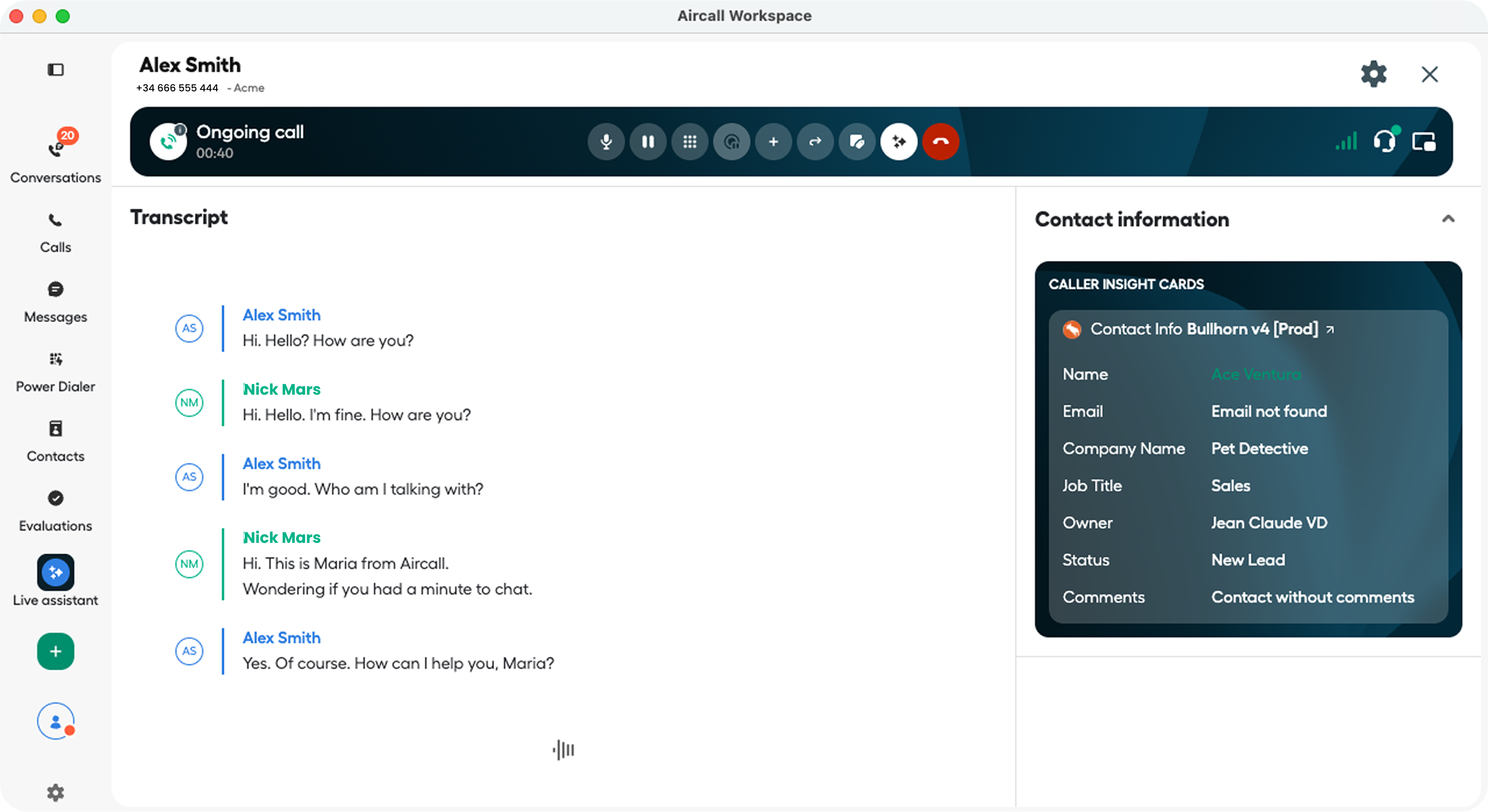
This guide walks you through the steps needed to display caller context in the Aircall agent workspace using a contextual data card.
Before you start, make sure you have:
- You must have an Aircall account. Sign up as a customer here or if you qualify to be a tech partner you can then sign up for a developer account here.
- An API ID and an API token. You can generate them in the Integration section of the Aircall Dashboard
- A webhook endpoint already configured to receive Aircall events. If you haven't set one up yet, see the Webhooks guide first.
- A data source to pull customer context from (a CRM, database, helpdesk, etc.)
Step-by-step guide
Now we are ready, here are the steps we are going to follow
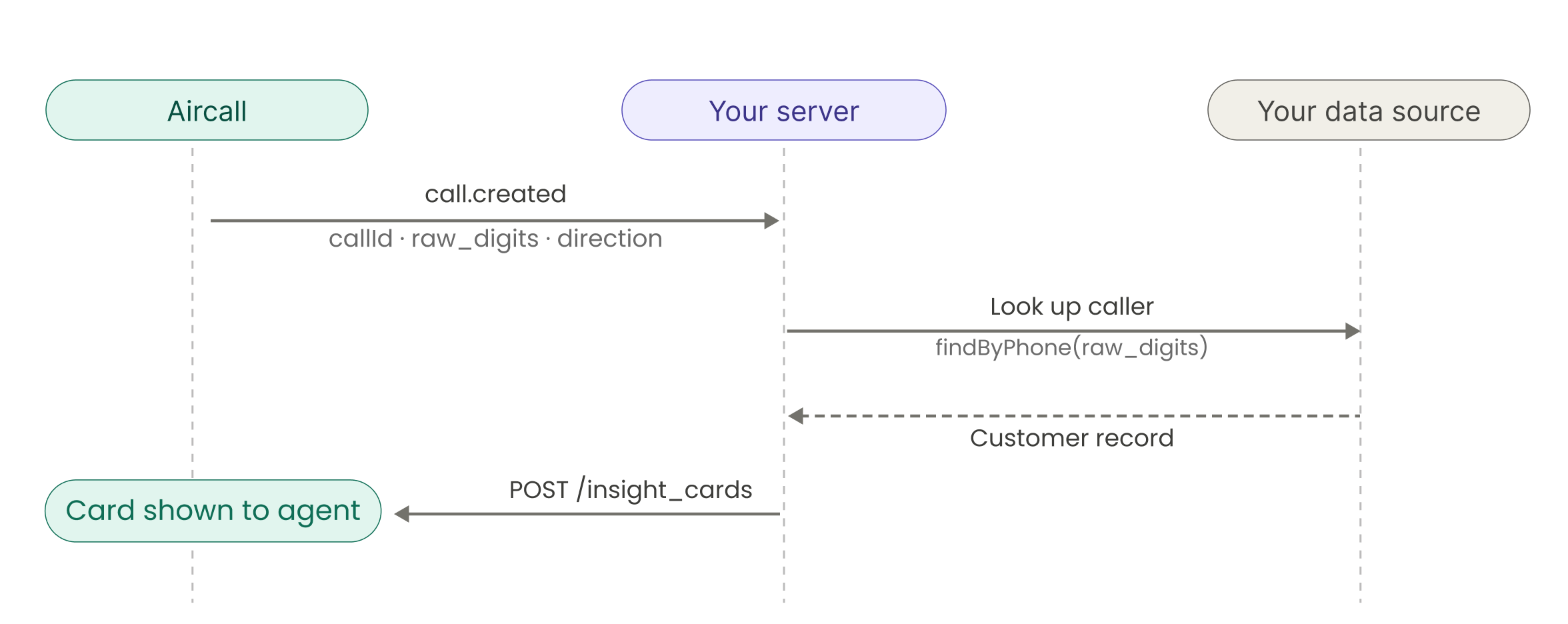
1. Listen for call.created events
call.created eventsYour webhook endpoint receives a POST request from Aircall each time a call starts. The request body includes the event type and a data object with call details. Here is what a call.created payload looks like:
{
  "resource": "call",
  "event": "call.created",
  "timestamp": 1512588391,
  "token": "123ASECRETTOKEN456",
  "data": {
    "id": 123,
    "direction": "inbound",
    "raw_digits": "+19171234567"
  }
}If you need more info on the Call object, check out the API reference
In your webhook handler, filter for call.created events and extract the call ID and caller's number — you'll need both when building the insight card.
app.post("/webhooks/aircall", async (req, res) => {
  const { event, data } = req.body;

  // In production, verify that the webhook was sent by Aircall before processing it.
  // This example focuses on the caller-context flow, so verification is omitted.

  // Ignore events that are not relevant for this workflow.
  if (event !== "call.created") {
    console.log("Ignoring Aircall event:", event);
    return res.sendStatus(200);
  }

  // The call ID is required to attach the contextual data to the active call.
  const callId = data.id;

  // raw_digits contains the caller's phone number as received by Aircall.
  // Use it to look up the caller in your CRM, database, helpdesk, or internal system.
  const callerNumber = data.raw_digits;

  try {
    // Build the contextual data card from your own system data.
    const payload = await buildInsightCard(callerNumber);

    // Send the card to the active Aircall call.
    await sendInsightCard(callId, payload);

    return res.sendStatus(200);
  } catch (error) {
    console.error("Failed to display caller context:", error);

    // Return 500 while testing so failures are visible in your webhook logs.
    // You can adjust retry behavior based on your webhook processing strategy.
    return res.sendStatus(500);
  }
});
2. Create the insight card
Now that you have received the webhook, fetch the data you want to display to the agent.
Before you build the payload, check which content types you can send in an insight card. See the Insight cards API reference for more information.
To send the card to Aircall's Public API, you will need to encapsulate the lines of your card in a contents array:
async function buildInsightCard(callerNumber) {
  // Replace this with a lookup in your CRM, database, helpdesk, or internal API.
  // Phone number is a good lookup key because not every caller has an email address in Aircall.
  const caller = await findCallerByPhone(callerNumber);

  // Every insight card needs a contents array.
  // Start with a title so agents can identify where the context comes from.
  const contents = [
    {
      type: "title",
      text: "My Awesome App Name"
    }
  ];

  if (!caller) {
    // Send a useful fallback when your system has no matching record.
    // This still tells the agent which number triggered the lookup.
    contents.push({
      type: "shortText",
      label: "No record found",
      text: callerNumber
    });
  } else {
    // Add the most useful details first. Agents should be able to scan the card quickly.
    contents.push(
      {
        type: "shortText",
        label: "Name",
        text: caller.name,
        link: caller.url
      },
      {
        type: "shortText",
        label: "Open tickets",
        text: String(caller.openTickets)
      }
    );
  }

  return { contents };
}
3. Send the insight card to the active call
Send the card payload as a POST request to /v1/calls/:id/insight_cards, where :id is the call ID from the webhook event.
Authenticate using HTTP Basic Auth with your API ID as the username and your API token as the password.
async function sendInsightCard(callId, payload) {

  // Keep your API credentials on the server. Never expose them in browser-side code.
  const apiId = process.env.AIRCALL_API_ID;
  const apiToken = process.env.AIRCALL_API_TOKEN;

  if (!apiId || !apiToken) {
    throw new Error("AIRCALL_API_ID and AIRCALL_API_TOKEN are required");
  }

  // Aircall Basic Auth uses your API ID as the username and your API token as the password.
  const credentials = Buffer.from(`${apiId}:${apiToken}`).toString("base64");

  // Attach the contextual data card to the active call.
  const response = await fetch(
    `https://api.aircall.io/v1/calls/${callId}/insight_cards`,
    {
      method: "POST",
      headers: {
        Authorization: `Basic ${credentials}`,
        "Content-Type": "application/json"
      },
      body: JSON.stringify(payload)
    }
  );

  if (!response.ok) {
    // Read the response body to make debugging easier during implementation.
    const errorBody = await response.text();

    throw new Error(
      `Failed to send caller context. Status: ${response.status}. Body: ${errorBody}`
    );
  }

  // A successful request means Aircall accepted the card for the active call.
  return true;
}
Done!
Insight Cards Best Practices
- Sending multiple Insight Cards to the same Call ID will not overwrite the previous; they will stack up in chronological order for the agent
- It is recommended to send separate Insight Cards for different objects that are looked up
- You can only send 1 title but many short text entries for each Insight Card
- Keep the short text short — the UI automatically cuts it off at approximately 30 characters
- Links are helpful in both the title and short text
Updated 3 months ago