

Capture WhatsApp activity
Use messaging webhooks to log inbound and outbound WhatsApp messages in real time, track delivery status, and build conversation threads in your system.
Overview
This guide shows you how to capture WhatsApp activity from an Aircall line into your own system. By the end, your integration logs every inbound and outbound message, keeps delivery status current, and reconstructs full conversation threads.
Aircall pushes this activity to you through webhooks. There is no REST endpoint for fetching message history, so webhooks are the only way to get WhatsApp data out of Aircall: once you register one, Aircall sends your server a POST request each time a message is sent, received, or has its delivery status updated. Your system becomes the record — start listening before the messages you care about are exchanged.
⚠️ Before continuing, make sure you've read WhatsApp overview.
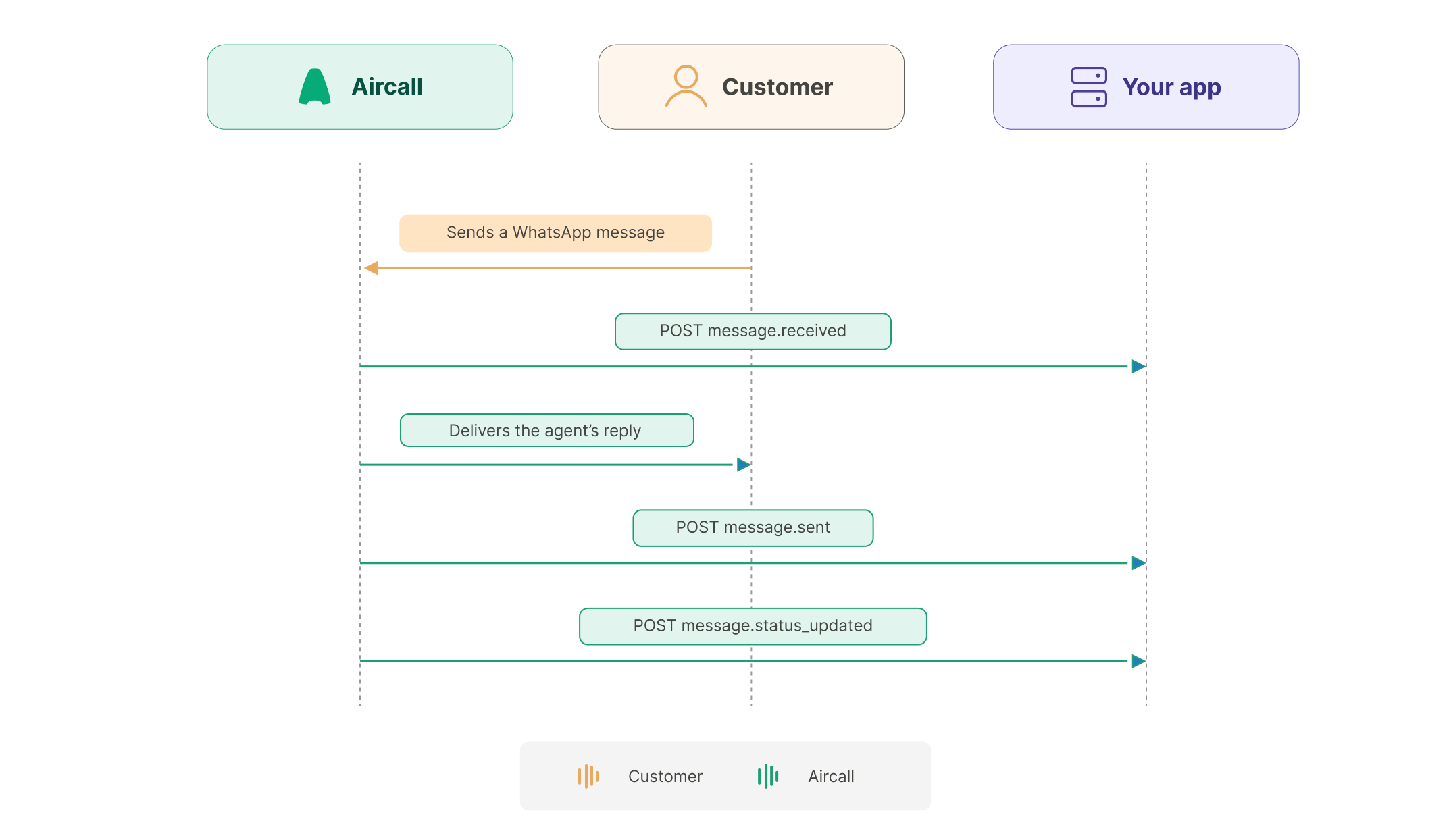
This guide covers lines in Native mode. Numbers configured for Proxy mode deliver inbound messages and status updates to the
callbackUrlset in the number configuration instead — messaging webhooks do not fire for those lines. See Send WhatsApp messages (Skipping-inbox).
Prerequisites
- An Aircall account that meets the WhatsApp messaging requirements
- API credentials — an API ID and token (Basic Auth), or an OAuth access token
- A publicly accessible HTTPS endpoint to receive webhook events
Register a webhook for messaging events
Register a webhook with the POST /v1/webhooks endpoint, subscribing to the three message events.
const createWebhook = async (accessToken) => {
  const res = await fetch('https://api.aircall.io/v1/webhooks', {
    method: 'POST',
    headers: {
      'Authorization': `Bearer ${accessToken}`,
      'Content-Type': 'application/json'
    },
    body: JSON.stringify({
      custom_name: 'YOUR_APP_NAME',
      url: 'https://your-app.example.com/aircall/webhook',
      events: ['message.received', 'message.sent', 'message.status_updated']
    })
  });

  if (!res.ok) {
    console.error('Failed to create webhook:', await res.text());
    throw new Error(`Webhook creation failed: ${res.status}`);
  }

  const { webhook } = await res.json();

  // Store webhook.token against your user record
  return webhook.token;
};Save the webhook token. Each event payload carries a token field matching the webhook that produced it. Compare it against the token you stored to identify which Aircall account an event belongs to, and to ignore requests that don't match. See Build event-driven integrations with webhooks to learn more.
Receive and process events
Set up a POST endpoint that accepts webhook payloads. Respond with 200 immediately and run processing asynchronously so Aircall doesn't time out waiting. Because the subscription also delivers SMS and MMS events, filter on the channel field before handling.
import express from 'express';

const app = express();
app.use(express.json());

app.post('/aircall/webhook', (req, res) => {
  res.sendStatus(200);

  const { event, token, data } = req.body;

  if (token !== process.env.AIRCALL_WEBHOOK_TOKEN) return;

  // SMS and MMS events arrive on the same subscription.
  // We only want to process WhatsApp events here, so we check the channel.
  if (data.channel !== 'whatsapp') return;

  processWhatsAppEvent(event, data).catch(console.error);
});

const processWhatsAppEvent = async (event, message) => {
  switch (event) {
    case 'message.received':
    case 'message.sent':
      await upsertMessage(message);
      break;

    case 'message.status_updated':
      await updateMessageStatus(message.id, message.status);
      break;
  }
};

app.listen(3000);
Working with WhatsApp events
Inbound messages
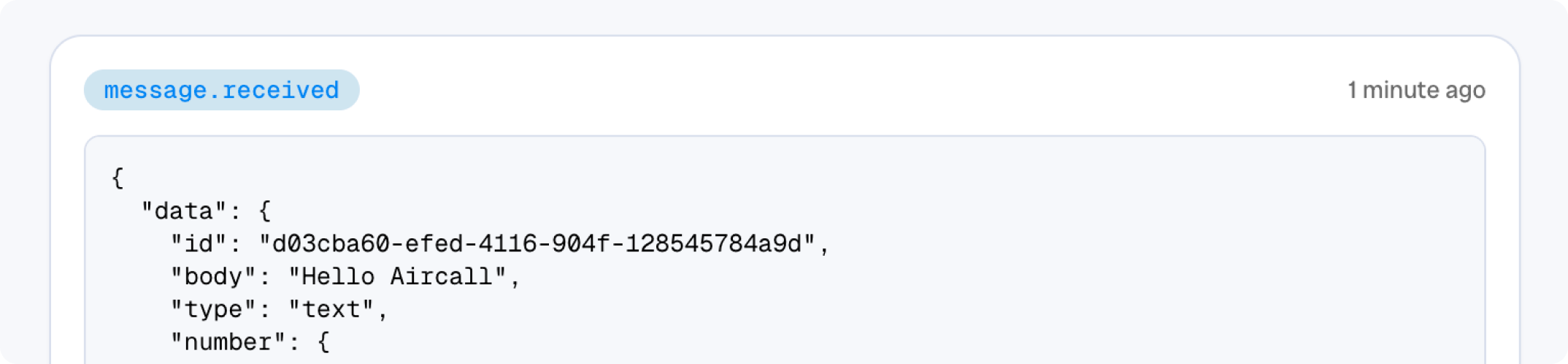
A message.received event fires when a customer messages your line. The payload carries everything you need to store the message and link it to a person: the text in body, the sender in external_number, and the channel to identify if the message is from WhatsApp or SMS.
Outbound messages
Outbound messages arrive through message.sent event, with the sending agent in user. When the message is a template (type is template), the payload also carries template_content — the template's name, category, language, and resolved components. The body already holds the final text the customer received, so store it directly rather than reconstructing it from the template.
const upsertMessage = async (message, direction) => {
  await db.messages.upsert({
    id: message.id,
    direction,                                // 'inbound' or 'outbound', from the event
    type: message.type,                       // 'text' or 'template'
    body: message.body,
    externalNumber: message.external_number,  // the customer
    lineId: message.number.id,
    agentId: message.user?.id ?? null,       // present on outbound messages
    templateName: message.template_content?.name ?? null,
    createdAt: message.created_at
  });
};Message direction. Neither
message.receivednormessage.sentincludes adirectionfield. The event name is the only signal —message.receivedis inbound,message.sentis outbound — so the handler passes 'inbound' or 'outbound' intoupsertMessagerather than reading it from message.
The 24-hour service window. Inbound payloads include
whatsapp_service_window_closing_time— the point after which WhatsApp's 24-hour customer service window closes. Store it if your integration needs to know whether it can send a free-form reply or must fall back to a template.
Delivery tracking
After an outbound message leaves your line, message.status_updated events report its progress — for example, a status of read.
The payload is lean: it carries the message id, status, channel, number, and external_number, but no body. Because it references the same id as the original message.sent, update the row you already stored to keep one record per message with its latest delivery state.
const updateMessageStatus = async (id, status) => {
  await db.messages.update(id, { status });
};
Updated 3 months ago