

Embed Aircall in a CRM sidebar
Integrate Aircall into your product and let your customers make calls without ever leaving it.
Getting Started
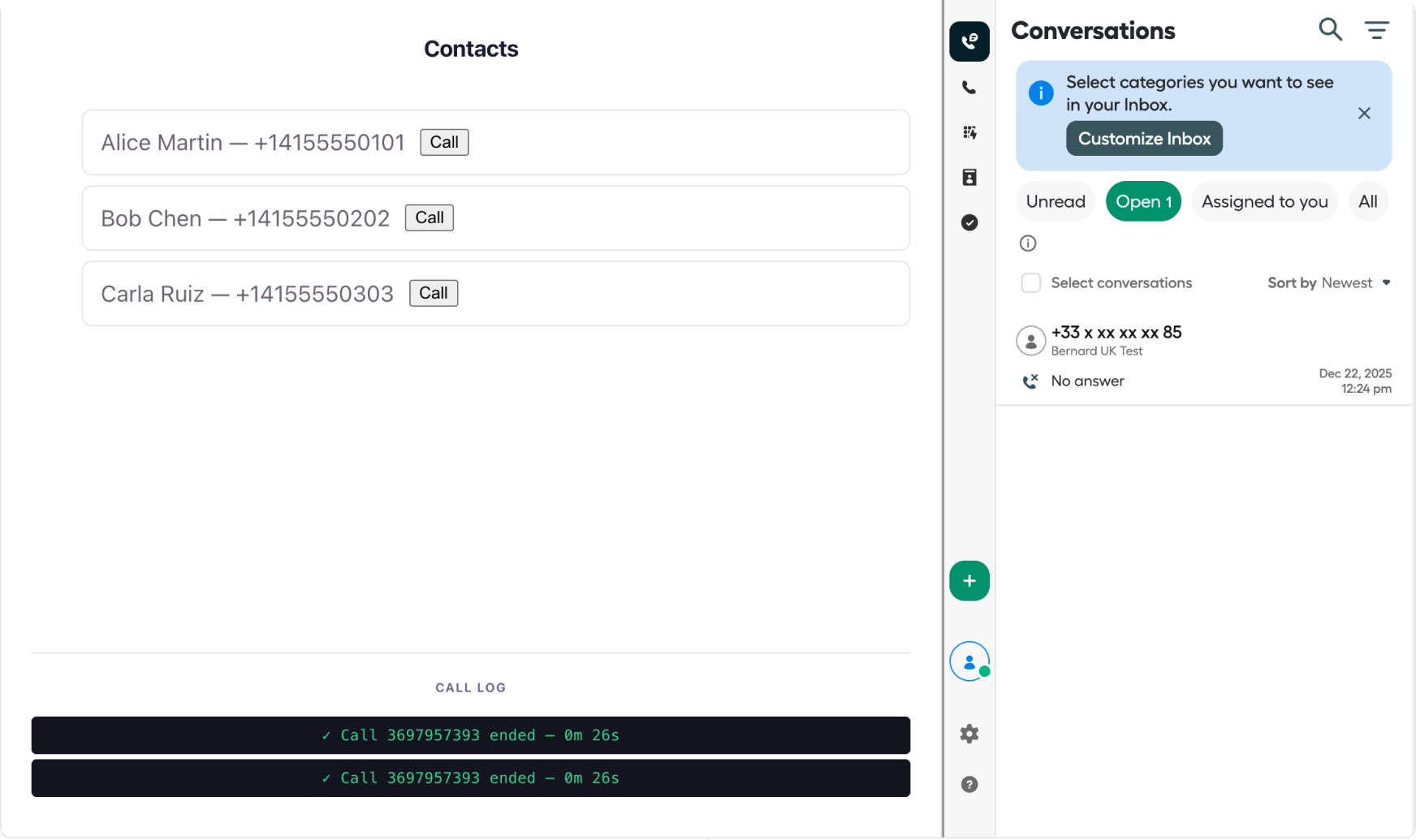
By the end of this guide you'll have the Aircall Workspace embedded directly inside your web application. Your app will be able to detect when an agent logs in, react to incoming and outgoing calls in real time, and programmatically trigger dials from your own UI.
Before you start you should have:
- Aircall Account — To fully test the embedded Aircall workspace, you need to have an Aircall account.
- Node.js package manager — npm is required to install the package.
- A web application — where you can embed Aircall Workspace
Scaffold the layout
In your application, create this layout:
<div class="sidebar-layout">

  <!-- Left panel: your app's contact list -->
  <div id="contact-panel">
    <h2>Contacts</h2>
    <ul id="contact-list"></ul>
    <div id="call-log"></div>
  </div>

  <!-- Right panel: Aircall Workspace mounts here -->
  <div id="workspace" style="width: 376px; height: 666px;"></div>

</div>
Install the SDK
npm install aircall-everywhereEmbedding Aircall Workspace
Import AircallWorkspace and create an instance pointed at your container element. The onLogin callback fires each time an agent signs in — use it to enable calling features in your UI.
import AircallWorkspace from 'aircall-everywhere';

let agentReady = false;

const workspace = new AircallWorkspace({
  domToLoadWorkspace: '#workspace',

  onLogin: (settings) => {
    agentReady = true;
    console.log(`Agent signed in: ${settings.user.email}`);
    renderContacts();
  },

  onLogout: () => {
    agentReady = false;
    console.log('Agent signed out');
  }
});
Once you save your project, you should see the Aircall Workspace.
And that’s it! You’ve successfully embedded Aircall Workspace in your application.
Add click-to-dial
Render a list of contacts, each with a call button. When an agent clicks the button, send a dial_number command to the workspace. The SDK pre-fills the dial pad and the agent starts the call from there.
const contacts = [
  { name: 'Alice Martin',  phone: '+14155550101' },
  { name: 'Bob Chen',      phone: '+14155550202' },
  { name: 'Carla Ruiz',    phone: '+14155550303' }
];

function renderContacts() {
  const list = document.getElementById('contact-list');
  list.innerHTML = '';

  contacts.forEach((contact) => {
    const li = document.createElement('li');
    li.id = `contact-${contact.phone}`;
    li.innerHTML = `
      <span>${contact.name} — ${contact.phone}</span>
      <button onclick="dialContact('${contact.phone}')">Call</button>
    `;
    list.appendChild(li);
  });
}

function dialContact(phoneNumber) {
  if (!agentReady) return;

  workspace.send(
    'dial_number',
    { phone_number: phoneNumber },
    (success, data) => {
      if (!success) {
        console.error('Dial failed:', data.code, data.message);
      }
    }
  );
}
Show caller context on incoming calls
Listen for the incoming_call event and match the caller's number against your contact list. When there's a match, highlight the contact so the agent immediately sees who's calling — before they pick up.
workspace.on('incoming_call', (callInfo) => {
  // Match the caller's number to a known contact
  const contact = contacts.find(c => c.phone === callInfo.from);

  if (contact) {
    // Highlight the matching contact row
    const el = document.getElementById(`contact-${contact.phone}`);
    if (el) el.classList.add('active-call');

    console.log(`Incoming call from ${contact.name} (${callInfo.from})`);
  } else {
    console.log(`Incoming call from unknown number: ${callInfo.from}`);
  }
});

// Clear the highlight when the call ends
workspace.on('call_ended', () => {
  document.querySelectorAll('.active-call').forEach(el => {
    el.classList.remove('active-call');
  });
});
In a production integration, you'd replace the static contacts array with a lookup against your database or CRM. The pattern is the same — match the phone number from the event payload and surface the relevant record in your UI.
Log call outcomes
The call_ended event fires when any call — inbound or outbound — is terminated. Use it to log the call ID and duration to your database, trigger post-call workflows, or update a CRM record.
workspace.on('call_ended', (callInfo) => {
  const minutes = Math.floor(callInfo.duration / 60);
  const seconds = callInfo.duration % 60;

  // Append to the on-screen log
  const log = document.getElementById('call-log');
  log.innerHTML += `
    <div class="log-entry">
      ✓ Call ${callInfo.call_id} ended — ${minutes}m ${seconds}s
    </div>
  `;

  // Persist to your backend
  saveCallRecord({
    aircall_call_id: callInfo.call_id,
    duration_seconds: callInfo.duration,
    ended_at: new Date().toISOString()
  });
});

async function saveCallRecord(record) {
  await fetch('/api/calls', {
    method: 'POST',
    headers: { 'Content-Type': 'application/json' },
    body: JSON.stringify(record)
  });
}
You can also listen for comment_saved to capture notes the agent writes during or after the call, and sync those to your CRM alongside the call record.
workspace.on('comment_saved', (data) => {
  console.log(`Note on call ${data.call_id}: ${data.comment}`);
  updateCallRecord(data.call_id, { note: data.comment });
});
Migrating to Aircall Everywhere SDK v2
As v1 is now in its deprecation phase, migrating to v2 ensures your integration stays supported and gives your users access to the latest Aircall experience.
Migrating to v2 is extremely easy. Simply, update the NPM package aircall-everywhere to its latest version:
npm install aircall-everywhere@latestAnd in your code, update the import from AircallPhone to AircallWorkspace:
// From
import AircallPhone from 'aircall-everywhere';
const aircallPhone = new AircallPhone({ ... });

// To
import AircallWorkspace from 'aircall-everywhere';
const aircallWorkspace = new AircallWorkspace({ ... });
Updated 3 months ago